GMC Optimizer

GMC Optimizer

Optimize and monitor Windows in one place.

More than 100 ready-made optimizations for privacy, performance, network and gaming. Alongside them, live system readings, health analysis and diagnostic tools, with apply and revert on every one.

  • v1.10.0
  • Free
  • Windows 10 and 11 · 64-bit
  • No data collected
GMC Optimizer Home screen: live processor, memory, disk and network readings, pending tweaks and the Health Analysis summary.

Free, simple, and built only for Windows

No plan, no subscription and no locked feature. Everything the app does is there from the moment you install it.

Free, with no plans

No subscription, no in-app purchase, no paid tier and no ads. You install it from the Microsoft Store and use all of it.

Simple and direct

Every optimization has one button to apply and one to revert, with a line explaining what it does. No multi-step wizard and no setup before you start.

Built only for Windows

Windows 10 and 11, 64-bit. Readings use the native system APIs and tweaks go straight to the registry, with no background process.

What comes ready

Nothing to configure before you start using it.

  • 100+ optimizations and presets ready to use
  • 4 live health meters: processor, memory, disk and network

What is inside

Six screens, and what each one solves.

Home: an instrument panel, not a list of shortcuts

Processor, memory, disk and network refreshed every 1 second, with a graph of the last 60 seconds. The reading is native to Windows: it does not depend on the system language and leaves no background process behind.

  • Machine identity strip: PC name, processor, graphics card with VRAM, Windows version and uptime
  • Storage panel with space in use and free, per volume
  • Recommendations that name the culprit: "Chrome is using 64% of the processor across 12 processes", with a shortcut to the list
  • The figure at the top shows the share of tweaks applied, with the total beside it
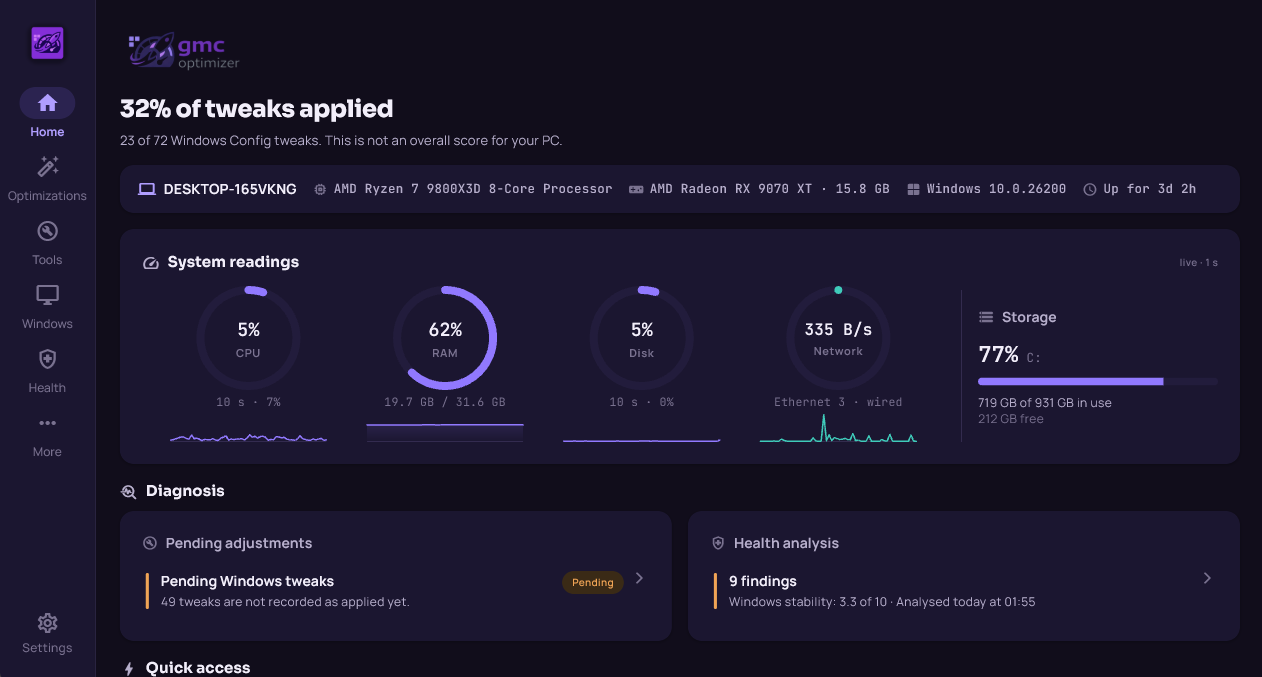
GMC Optimizer Home screen: live processor, memory, disk and network readings, pending tweaks and the Health Analysis summary.

Optimizations and FPS Configs

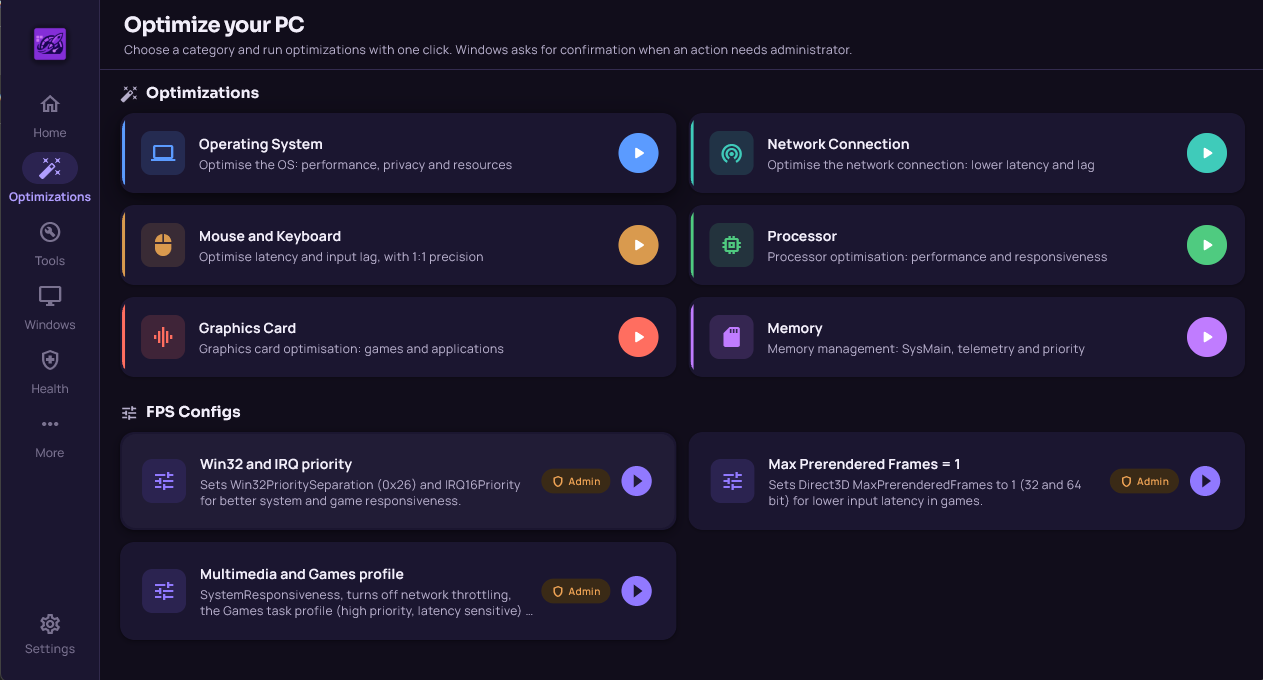
More than 100 ready-made optimizations, counting the 72 Windows tweaks, the six script routines and the three FPS Configs. The routines cover operating system, network connection, mouse and keyboard, processor, graphics card and memory.

  • FPS Configs: Win32 and IRQ priority, Max Prerendered Frames set to 1, and the Multimedia and Games profile
  • Every step shows its own state: applied, already set, failed or not run
  • Revert an optimization: the dialog says how many values and services will be restored
  • And it also says what it cannot undo: power plans, netsh network tweaks and cache flushes. For those, the way back is the restore point
  • Restore point verified: the app reads the system after requesting it and only claims success once it exists
Optimizations screen: six script routines and the FPS Configs, each with its own run button.

Windows tweaks

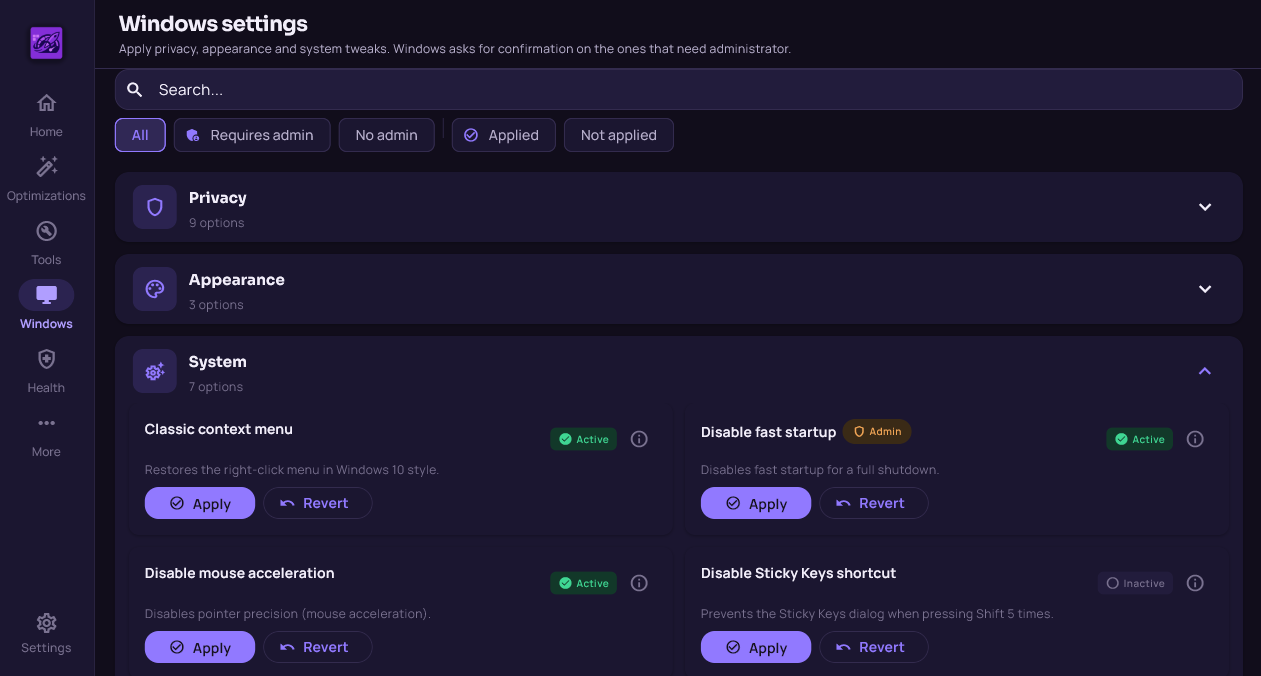
72 tweaks across privacy, appearance, system, Start menu, taskbar, File Explorer, gaming, multitasking, AI and update, grouped by category.

  • Apply or revert them one at a time, each with what it does and why it exists
  • A state on every item: Active, Inactive or Not checked
  • 61 of the 72 are read straight from the registry key
  • Search and filters by privilege and by applied state
Windows settings screen: tweaks by category, each marked Active, Inactive or Not checked.

Health Analysis

The headline of version 1.10, on its own screen. A scan of what Windows already knows about itself, ending in a report of what is worth fixing.

  • Reads the event log, application errors, services, component state, disks, devices and protection
  • Uses the stability index Windows itself keeps, the 14 day average you can also see in perfmon /rel
  • Keeps the last scan between sessions and shows the date it was taken
  • Has a "what was not verified" section, with the option to retake only the readings that were missing

What the scan reads

Event log
Application errors
Services
Component state
Disks and devices
Stability index
3.3 of 10

The stability index comes from Windows itself, with the scan date in plain sight. The report lists what is worth fixing and what could not be read.

Tools

What normally takes five different Windows windows, with readable output.

  • System file verification with SFC and DISM, each tool reporting its own result
  • Disk health with wear level, telling SSD apart from mechanical disk
  • Processor, graphics card and disk temperature, on demand
  • Diagnostics from the event log, startup programs, registry analysis and Wi-Fi diagnostics

History

What changed, when it changed, and how to go back.

  • Every entry marked as applied or reverted
  • Undo one change or all of them at once
  • Changes with no way back are marked as such

What it does not do

This is here because knowing the limit before installing is more useful than finding it afterwards.

  • It does not clear temporary files
  • It does not defragment disks
  • It does not remove viruses
  • It does not speed up your internet
  • It promises no FPS percentage and no speed multiplier
  • It installs no service and does not stay resident
  • It collects no data
  • It has no paid tier and no in-app purchases

The list is here so you know what to expect before installing. GMC Optimizer covers Windows configuration, system readings and diagnostics.

It opens without asking for Administrator

Permission is requested per action, by Windows itself, and only when the action needs it.

Elevation per action

When an action needs Administrator, Windows asks at that moment. Nothing runs elevated the whole time.

You know before you click Admin

The item already carries the Admin badge before the click, so there is no unexpected prompt.

Nothing leaves the machine

No service installed, no resident process, no telemetry and no personal data collected.

What changed in the latest version

1.10 rolls up everything done since 1.7, the last version published before it.

v1.10.0
  • New Health Analysis: a scan of Windows events, errors, services and components, with a report of what is worth fixing, on its own screen.
  • Home is now two columns: pending tweaks on one side, the health summary on the other.
  • Recommendations name the process responsible, with a shortcut to the list.
  • Every step of an optimization shows its own state: applied, already set, failed or not run.
  • New: revert an optimization. The app records what was there before each change and writes it back, and tells you what cannot be undone.
  • Restore point verified on the system after it is created.
  • Windows tweaks: 61 of the 72 verified straight from the registry.
  • SFC and DISM output is readable and correctly accented, with each tool reporting its own result.
  • The app tells SSD from mechanical disk and adjusts what it recommends.
  • Optimizations, FPS Configs and Registry are now in English too.

What you need to run it

Distributed through the Microsoft Store as a signed package. There is no direct download: a copy taken outside the Store is not recognised as a legitimate install and will not open.

System
Windows 10 version 17763 or later
Architecture
64-bit
Languages
English and Portuguese
Price
Free

Install it from the Microsoft Store

Free, no ads and no in-app purchases. Installation and updates go through the Store.